Want to understand how we build and validate strategies before you use them? See our full research methodology →
Setup GuideAutomated NinjaTrader Setup —
From Purchase to Live Execution
Everything you need to get your FalcoAlgo strategy running on NinjaTrader 8. The process takes under 10 minutes.
Select the strategy that fits your trading style and complete checkout through our secure Stripe payment page.
-
1Browse strategies and click Get This Strategy on the plan you want Choose from a monthly subscription or one-time license depending on availability.
-
2At checkout, enter your Machine ID in the reference field This binds the license to your specific machine. See Step 2 below for how to find it.
-
3Complete payment — access is granted immediately You'll receive a confirmation email with your download link and license details.
Each license is machine-specific. If you need to transfer to a new machine in the future, contact support and we'll handle it for you.
Your Machine ID is a unique identifier inside NinjaTrader. You'll need this before or during checkout.
-
1Open NinjaTrader 8 on your trading machine
-
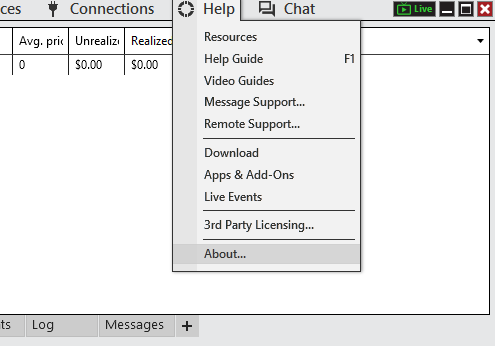
2In the top menu, click Help
-
3Select About... from the dropdown
-
4Copy the Machine ID shown in the window Paste this into the reference field at Stripe checkout.
During Stripe checkout, look for the field labeled Machine ID / Reference. Paste your full Machine ID there exactly as it appears in NinjaTrader. Do not add spaces or modify it.
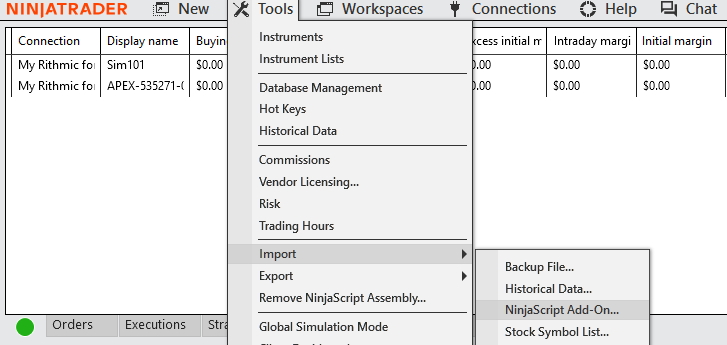
Once you've downloaded your strategy file, import it into NinjaTrader using the built-in NinjaScript importer.
-
1In NinjaTrader, click Tools in the top menu
-
2Hover over Import
-
3Click NinjaScript Add-On...
-
4Browse to and select the .zip file you downloaded at checkout NinjaTrader will compile and install the strategy automatically.
NinjaTrader will ask you to confirm the import. Click Yes and wait for the compilation to finish before proceeding.
Open a chart for the instrument the strategy trades, then add the strategy and configure your risk parameters before going live.
-
1Open a new chart in NinjaTrader Right-click on the chart area and select Strategies, or use the chart toolbar.
-
2Set the instrument to ES (E-mini S&P 500) or MES (Micro E-mini S&P 500) Each FalcoAlgo strategy is designed specifically for these two instruments.
-
3Add your FalcoAlgo strategy to the chart
-
4In the strategy parameters, configure your risk settings Set your contract size, daily loss limit, and any other risk controls to match your account size and risk tolerance. Do not skip this step.
Each strategy ships with default parameters. Review and adjust those parameters to match your account size and risk tolerance before enabling live trading.
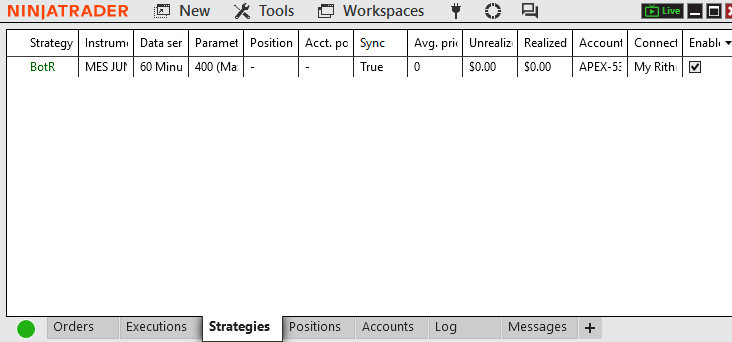
Once configured, enable the strategy from the Strategies tab at the bottom of the NinjaTrader control center. Your bot is now live.
-
1At the bottom of the NinjaTrader control center, click the Strategies tab
-
2Locate your FalcoAlgo strategy in the list
-
3Check the Enable checkbox on the right The strategy will immediately begin monitoring the market and executing trades according to its logic.
Keep NinjaTrader running while the strategy is active. The bot requires NinjaTrader to be open and connected to your broker to place and manage trades.
Ready to Get Started?
Browse the full strategy lineup and pick the one that matches your trading style and risk profile.
Questions? Contact us → or join our Discord →